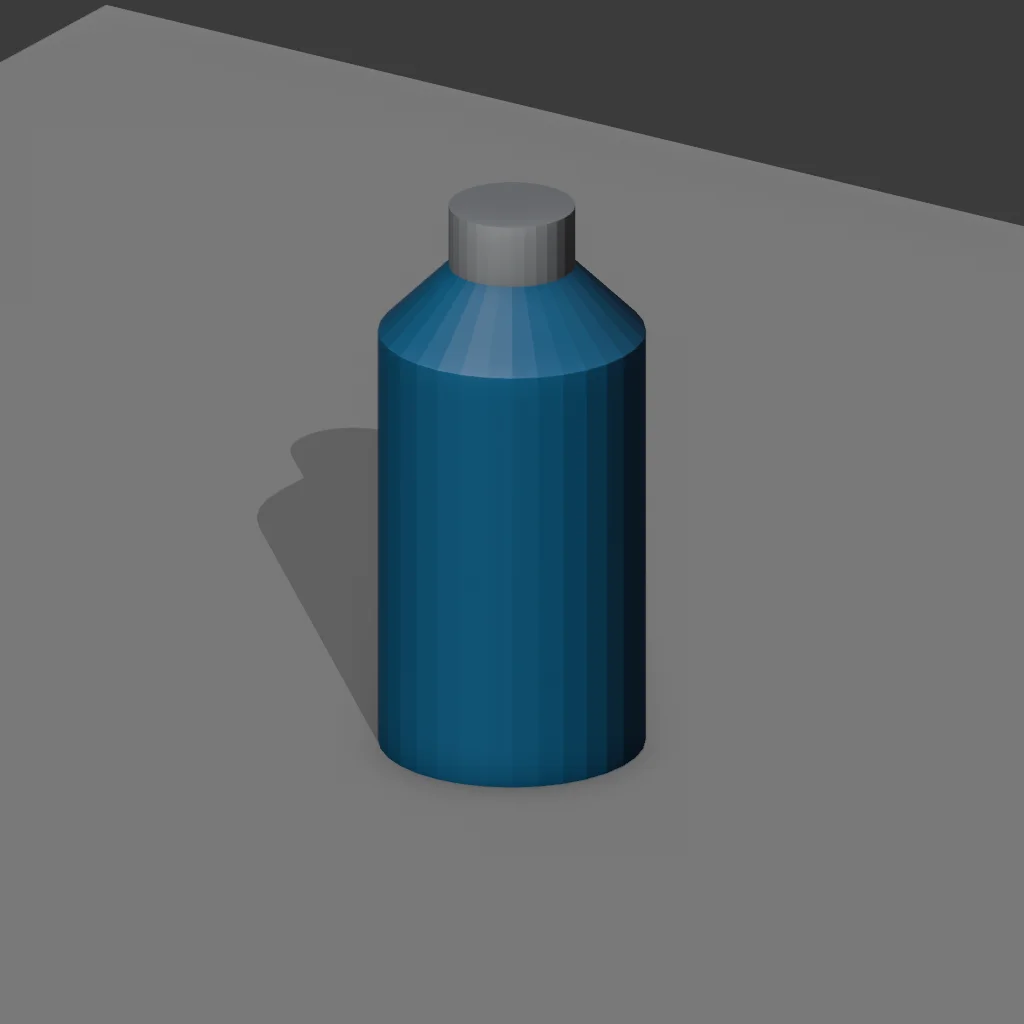
Prepare a clean screenshot
Choose your view in Blender, turn off Overlays and hide unwanted objects. Crop out menus and panels while keeping the entire product and a little breathing room. Export a PNG, JPG or WebP up to 10 MB.
Blender AI Render · Product studio
Upload a product viewport or clay render. Explore better lighting and materials, compare with your original, and download. No plugin needed.
Use a clean viewport or clay render with one product clearly visible. Hide Blender menus and overlays before capturing.
One image per run. Each new render uses credits. Failed renders are refunded.
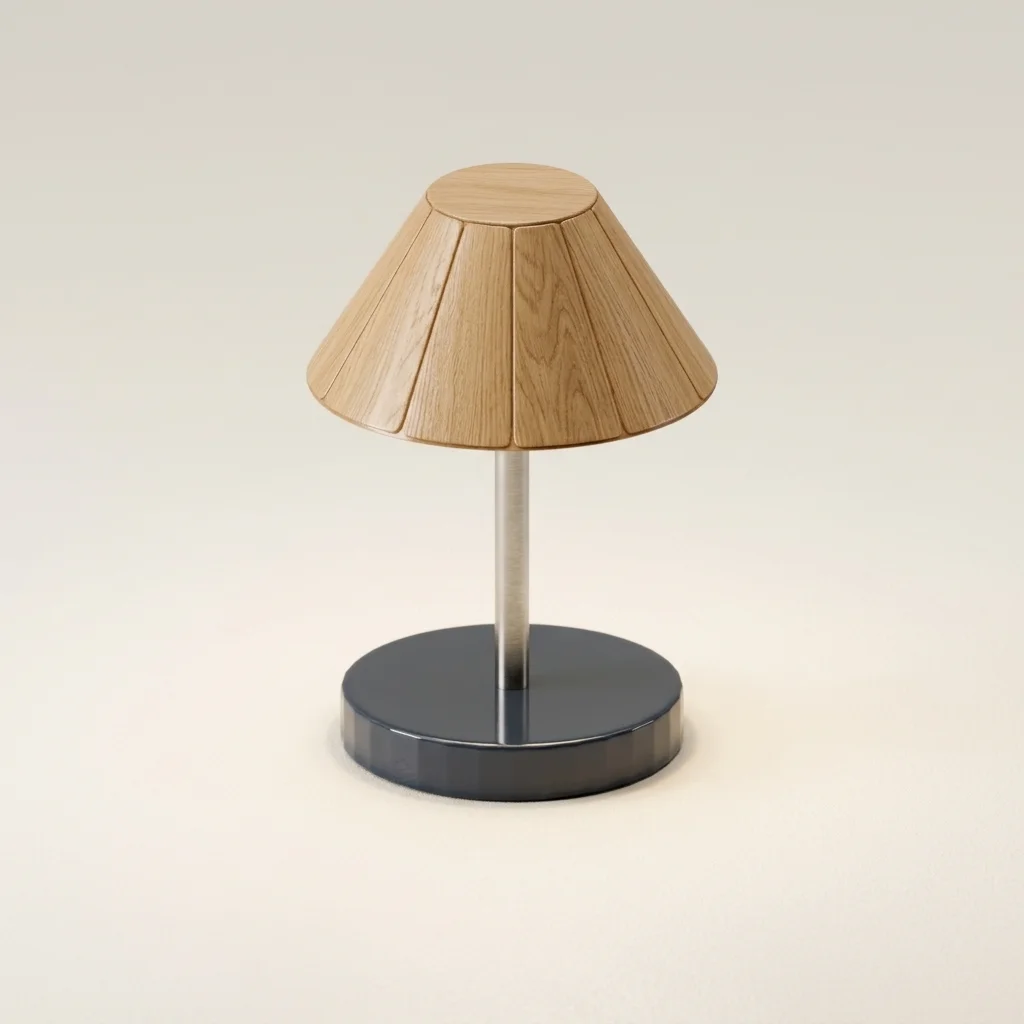
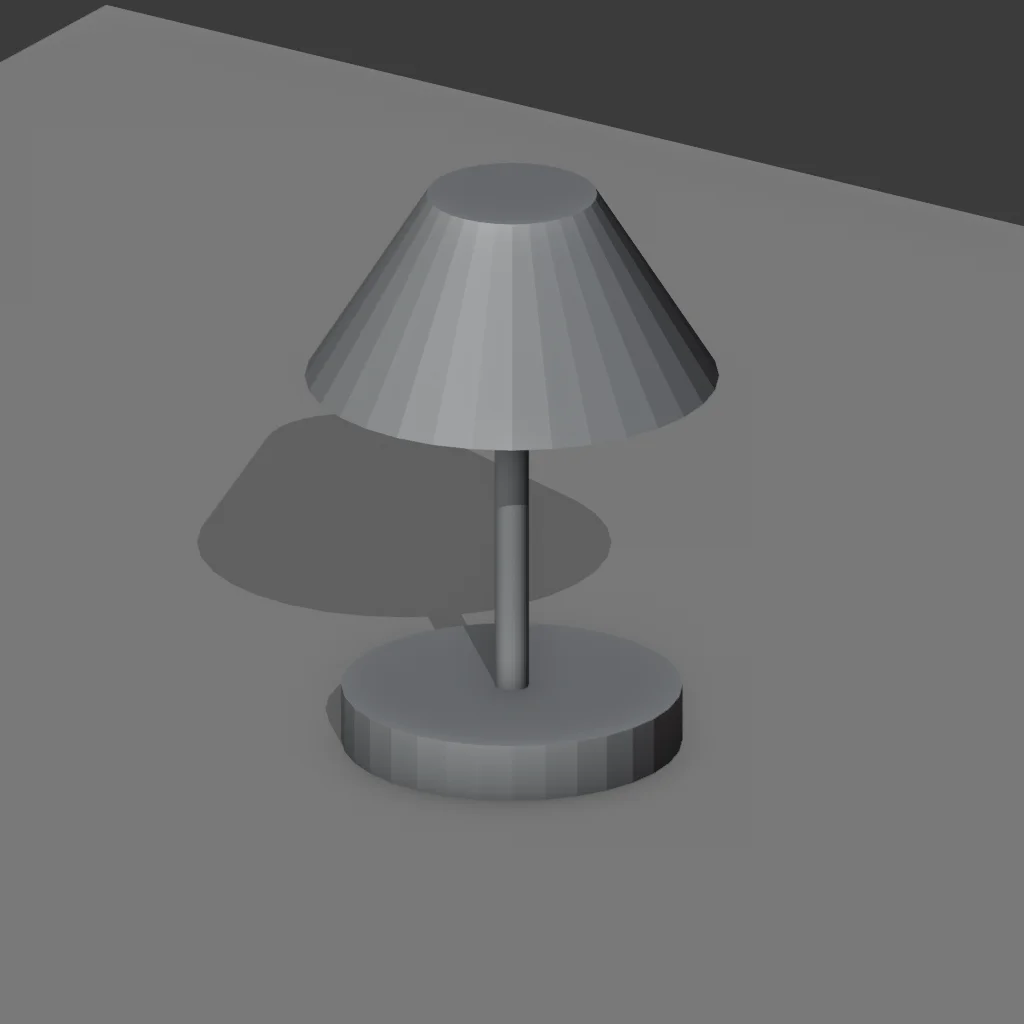 BeforeAfter
Original Blender scenes, tested via API with this model and studio preset. This is a sample; your completed render will replace it.
AI may change details. Review the result against your design. This creates a presentation image, not an edited Blender file.
Actual tests · original Blender scenes
AI interprets the shade as wood and the stem as metal. Check the shade opening and base against the original.
Generated in API tests with this tool’s model and studio preset, with the material note left blank. Results vary; download an input to try it yourself.
Create a premium product catalogue photograph from this Blender viewport. Treat flat gray surfaces as unassigned clay materials, NOT the intended final color. Choose convincing finished materials appropriate to the object, such as natural oak, brushed metal, glazed ceramic or woven fabric, with subtle realistic texture. Preserve the camera angle, framing, product silhouette, proportions and number of objects. Replace the viewport lighting and floor with a clean warm off-white seamless studio, large softbox illumination, gentle contact shadows and balanced photographic exposure. Make the result clearly look like a photographed finished physical product, not a gray CAD model. Show only the objects visible in the input. Do not add or remove any product parts: no extra cushions, cables, handles, trim, rings or bases. Keep the lighting equipment outside the frame. No props, labels, text or logos. Do not redesign the product. Preserve deliberate non-gray material colors.
From model to presentation
Start with a screenshot when you already have a product shape and want to explore a finished look for a concept presentation or social post. Choose your workflow by the deliverable you need.
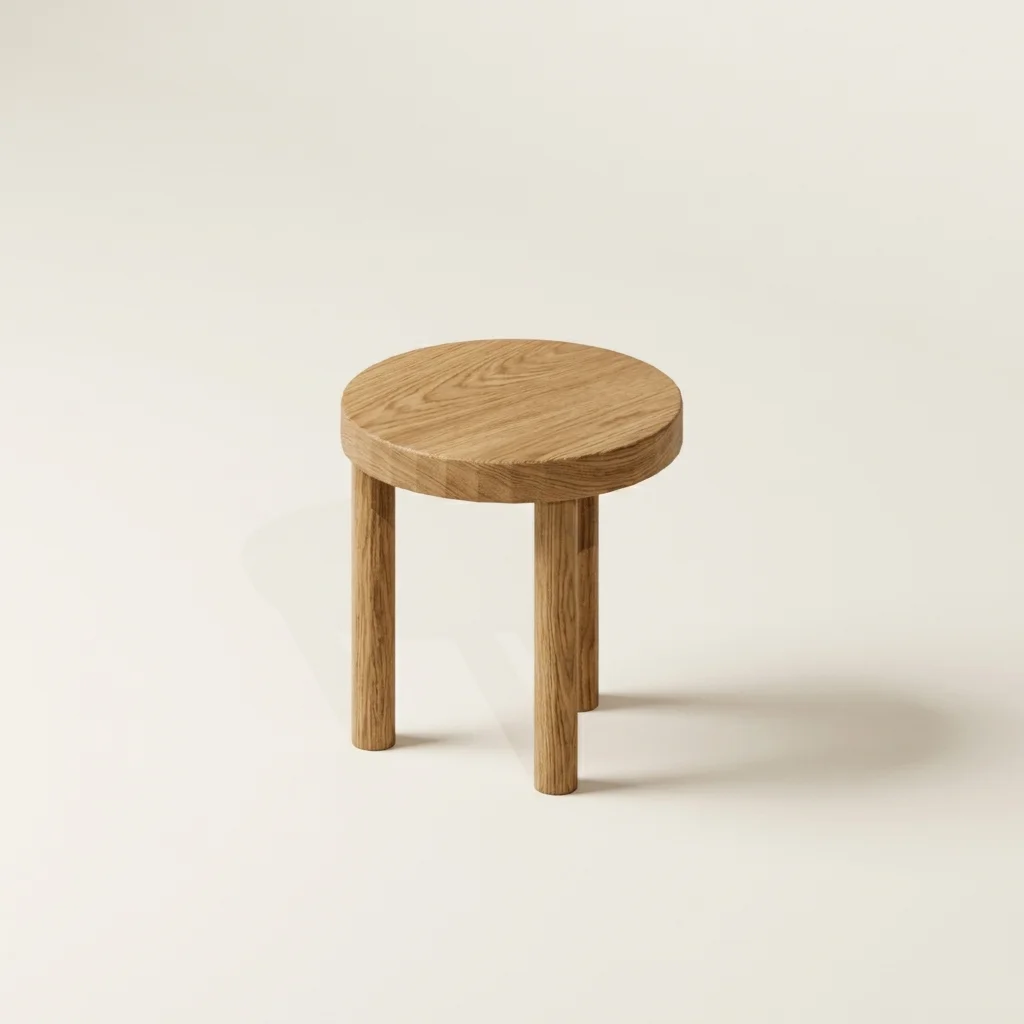
Use AI Render to explore studio lighting and finishes for one product or furniture item. Inspect the result before using it to communicate your concept.
Set up materials, lighting and cameras in Blender and render the scene natively when the geometry and design details must match your project.
Build or modify the model first, then choose how to present it. This image workflow does not output meshes or material nodes.
Still building the scene? Use the Blender script generator, or start with the 3D model generator when you need a model.
A better starting image
Choose your view in Blender, turn off Overlays and hide unwanted objects. Crop out menus and panels while keeping the entire product and a little breathing room. Export a PNG, JPG or WebP up to 10 MB.
Cap ↙Body →Upload one image. Leave clay surfaces gray to explore materials, or keep intentional colors in the input. Optionally describe materials by part and your lighting preference. Sign in, check the credit price and start the render.
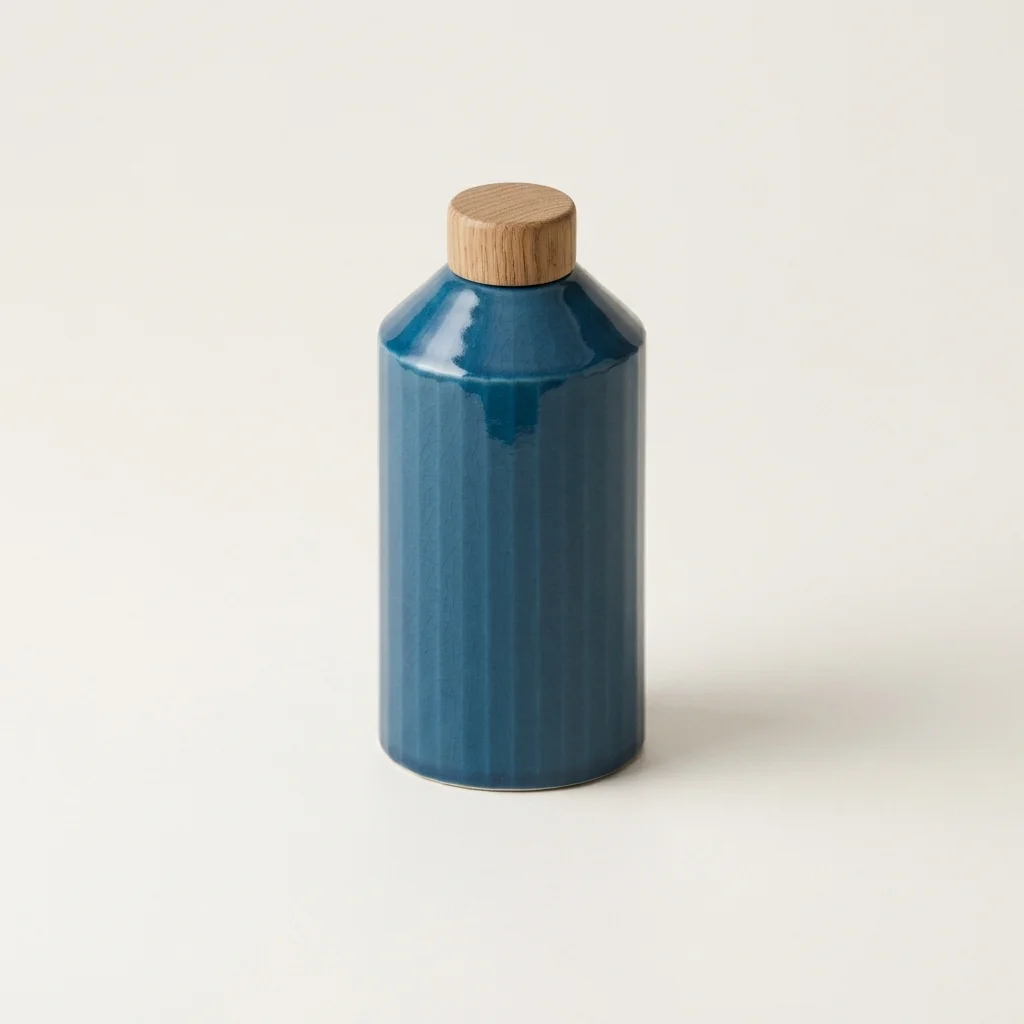
Use the before-and-after view to check the silhouette, openings, supports and part count. Download a result you like. For structural corrections, change the model in Blender and upload a new screenshot.
Use part + material + color + lighting, within 400 characters. These are suggested notes to adapt, not the prompts used for the gallery results.
Seat and legs in natural oak, matte finish, soft side lighting.
Bottle body in deep blue glazed ceramic, cap in light oak.
Select a note and copy it into the material description field.
Original design
AI result
Check for cropped edges and overlapping parts. Choose a clearer view of the silhouette. Use a native Blender render when exact geometry is essential.
Replace vague requests such as “premium finish” with a material for each part: body, cap or frame. Keep intentional colors visible in the input.
Remove scene clutter from your input before another attempt. Check the output for added props, lettering and visible lighting equipment before sharing.
A new render after a completed result costs another 12 credits. Jobs marked failed are refunded. Refreshing the page lets you return to the existing task.
No plugin is required. Upload one PNG, JPG or WebP up to 10 MB in your browser. Export the view you want from Blender as an image first.
Each run produces one 1K presentation image. It contains no mesh, UVs or editable materials, and separate views are not guaranteed to stay consistent.
Failure refunds apply to jobs marked failed by the system. A completed image uses credits even if it does not match your expectations. Generating again starts a new paid task.
No. Input and output are images. The tool does not upload or modify .blend files or create editable Blender materials.
The preset asks AI to preserve the view, silhouette and layout, but details can change. Use the result for presentation concepts and check it against your design.
Start with a clean screenshot or clay render of one product or piece of furniture. Hide menus and overlays. Complex interiors, consistent multiple views and precise engineering drawings are outside this release.
Each run produces one image and costs 12 credits from your existing wallet. A new render uses credits again. Failed jobs are refunded.
Uploads are not automatically published in the showcase. Images are sent to the generation service and stored for your job history. Upload only images you have permission to use; see our privacy policy.
Start with a clean screenshot and the product studio preset. 12 credits per run, using your existing wallet.
Open Blender AI Render →